Field Mappings
Field mappings control how data from Kleer is written to HubSpot properties. You configure them per object type from the settings page in HubSpot.
How It Works
Each mapping is a pair: a Kleer field and a HubSpot property. When a record syncs, the integration reads the Kleer field value and writes it to the mapped HubSpot property.
For example, mapping Name to Company name means the client's name in Kleer will be written to the Company Name property in HubSpot.
The Mappings Table
Each object tab shows a table of configured field mappings:
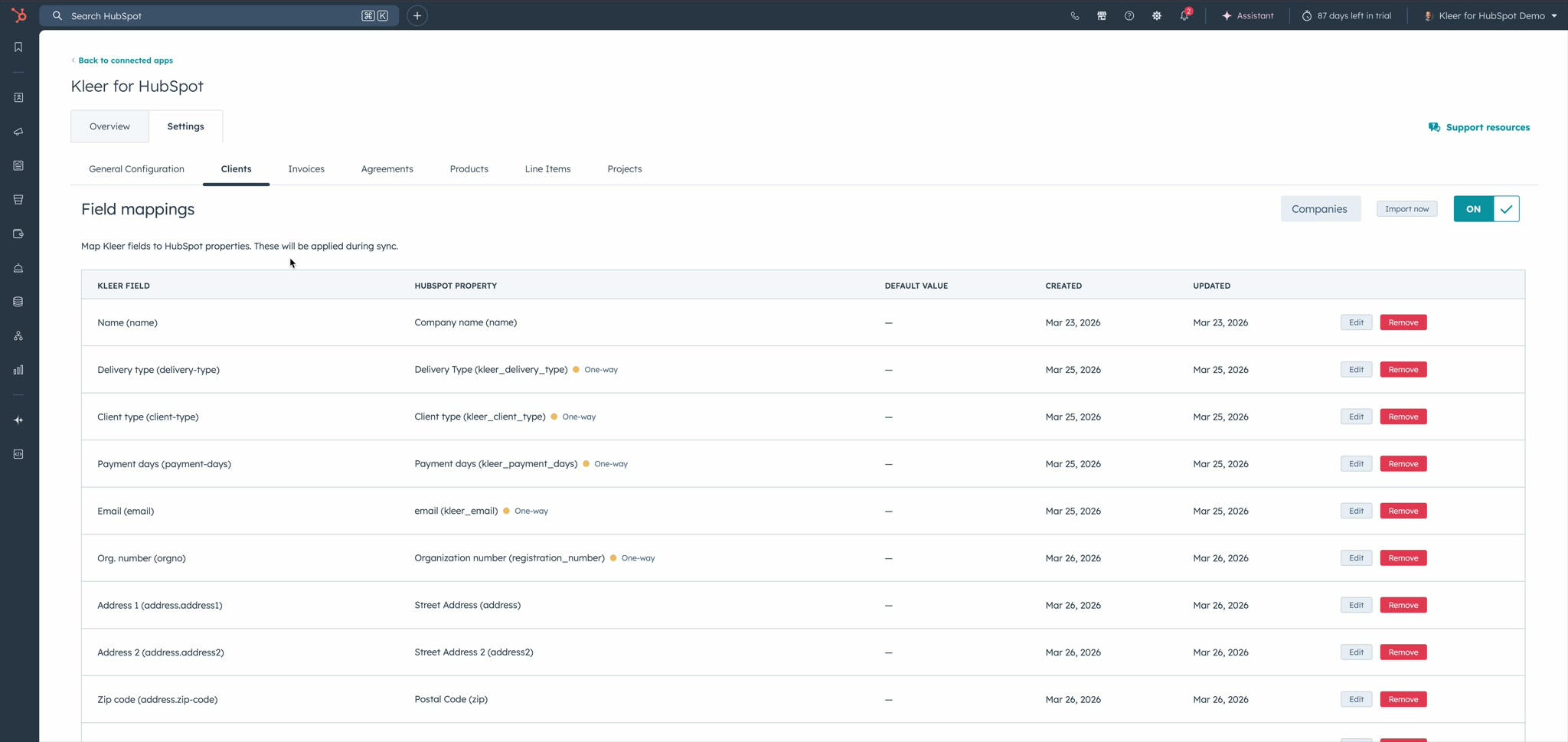
The table shows:
- Kleer Field — The source field from Kleer (with the internal field name in parentheses)
- HubSpot Property — The target property in HubSpot
- Default Value — A fallback value if the Kleer field is empty
- Created / Updated — When the mapping was last modified
Some HubSpot properties show a "One-way" badge — this means that editing this property in HubSpot will not trigger an inbound sync back to Kleer. The data still flows both ways, but only changes to properties without this badge will trigger the sync.
Adding a Mapping
Click Add mapping at the bottom of the table to open the mapping dialog:
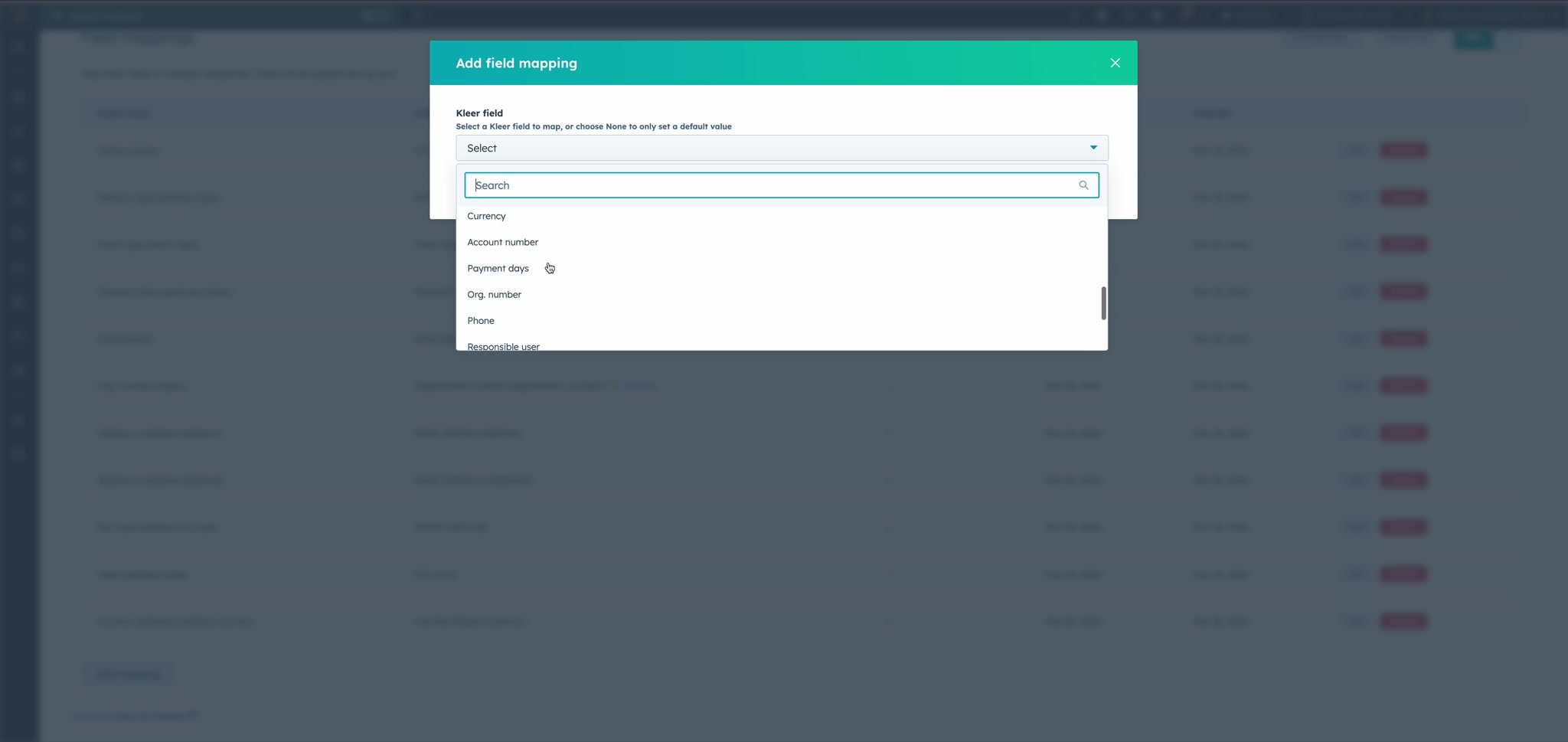
- Select a Kleer field — Choose from the dropdown, or select "None" to only set a default value
- Select a HubSpot property — Pick an existing property from your portal
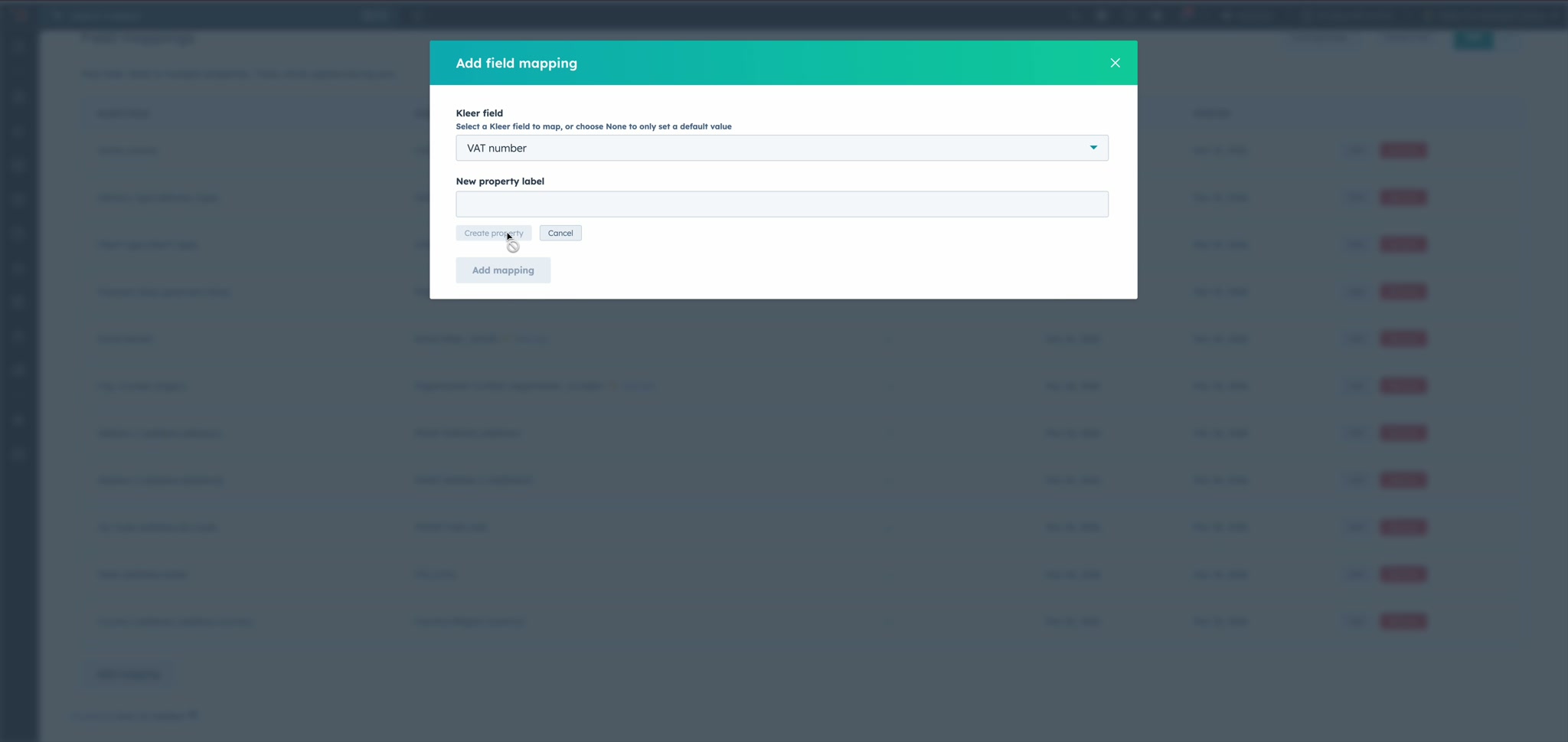
Creating a New HubSpot Property
If the HubSpot property you need doesn't exist yet, click Create new property. The integration will suggest a property label and internal name based on the Kleer field:
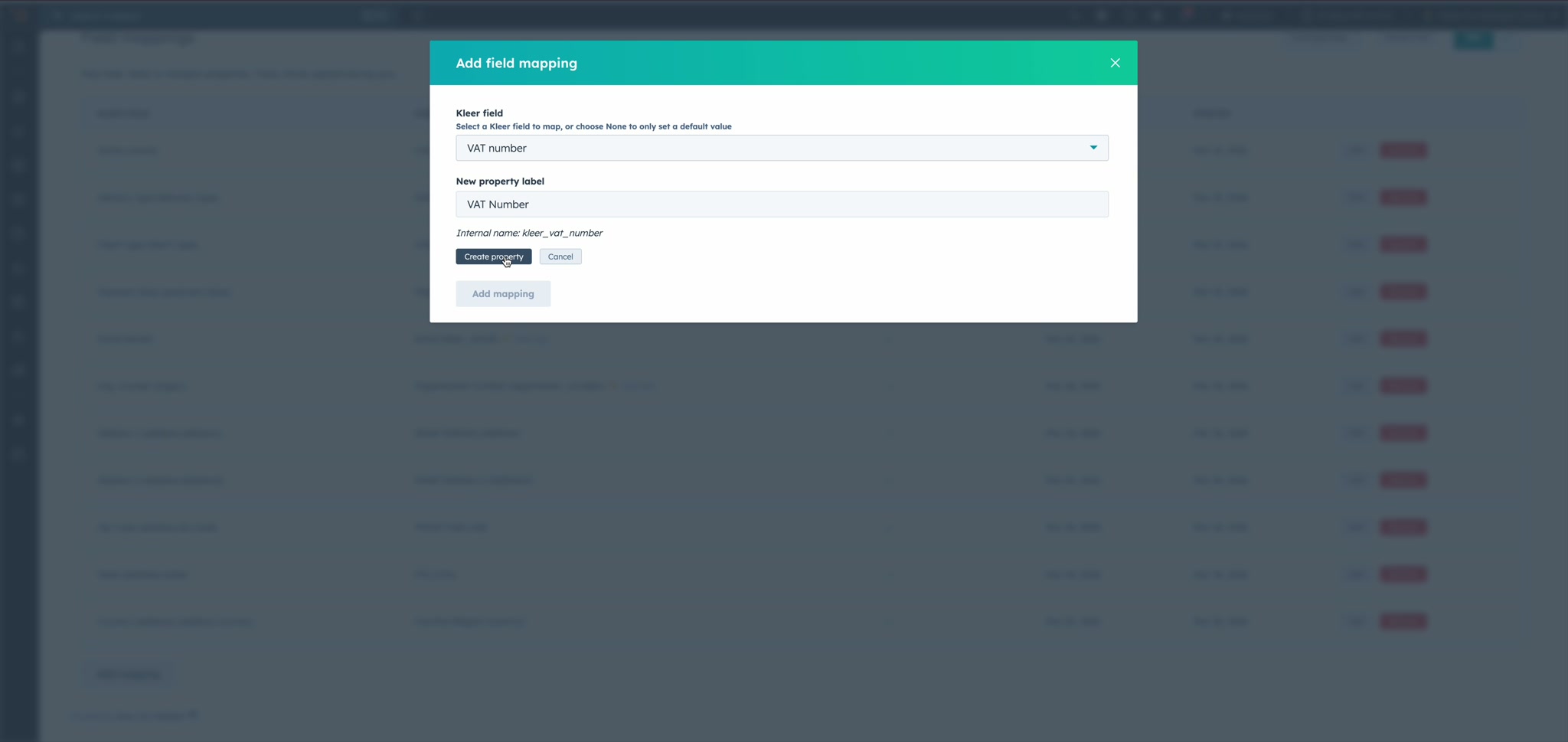
Click Create property and it will be created in your HubSpot portal and automatically selected for the mapping.
Different Object Types
Each object type has its own tab and mapping configuration. Here's the Invoices tab as an example:
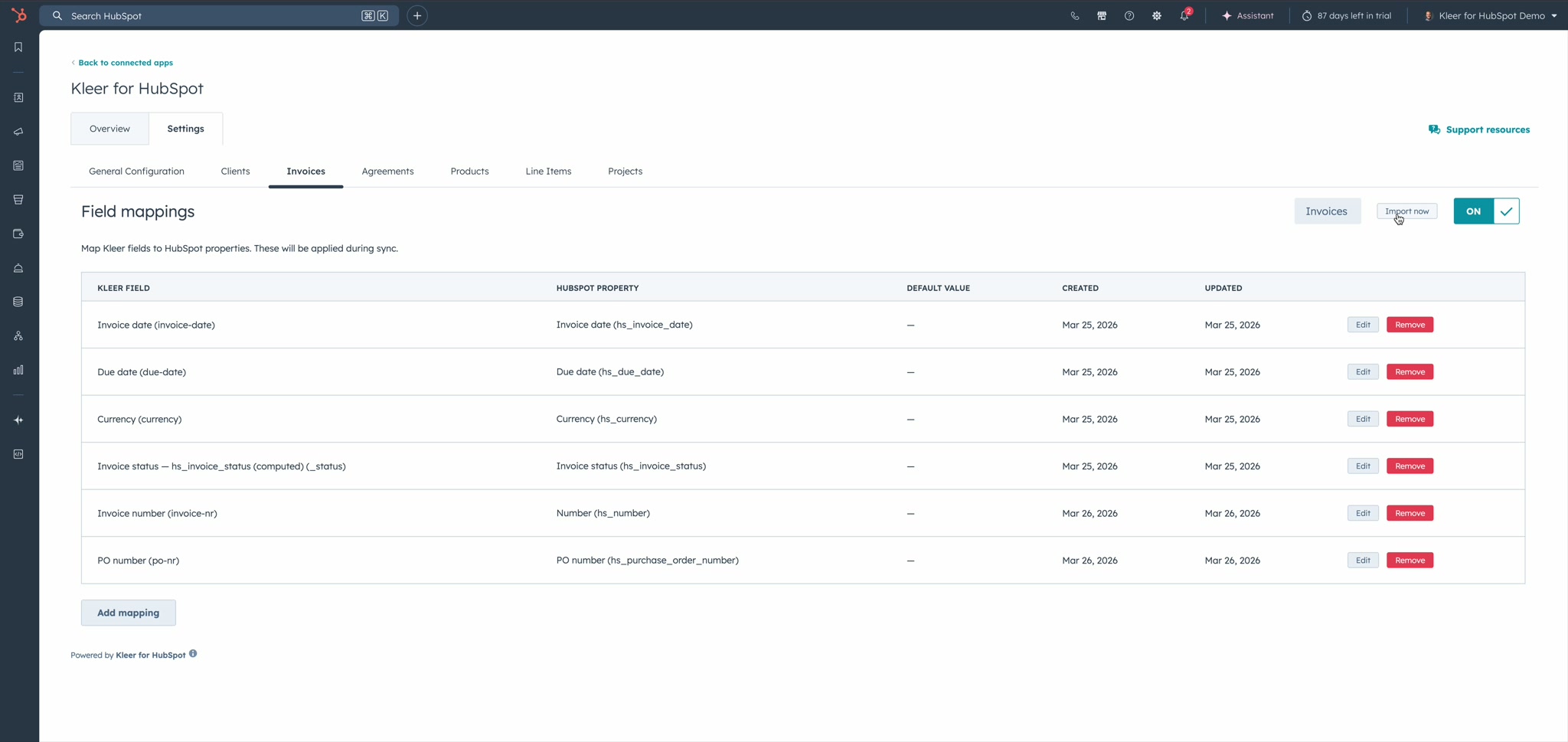
The available Kleer fields differ per object type — invoices have date and currency fields, agreements have billing frequency and recurring revenue fields, etc.
Changing the HubSpot Object Type
By default, each Kleer object type maps to a specific HubSpot object (e.g. Clients → Companies, Agreements → Subscriptions). You can change this using the object type dropdown in the top-right of each tab:
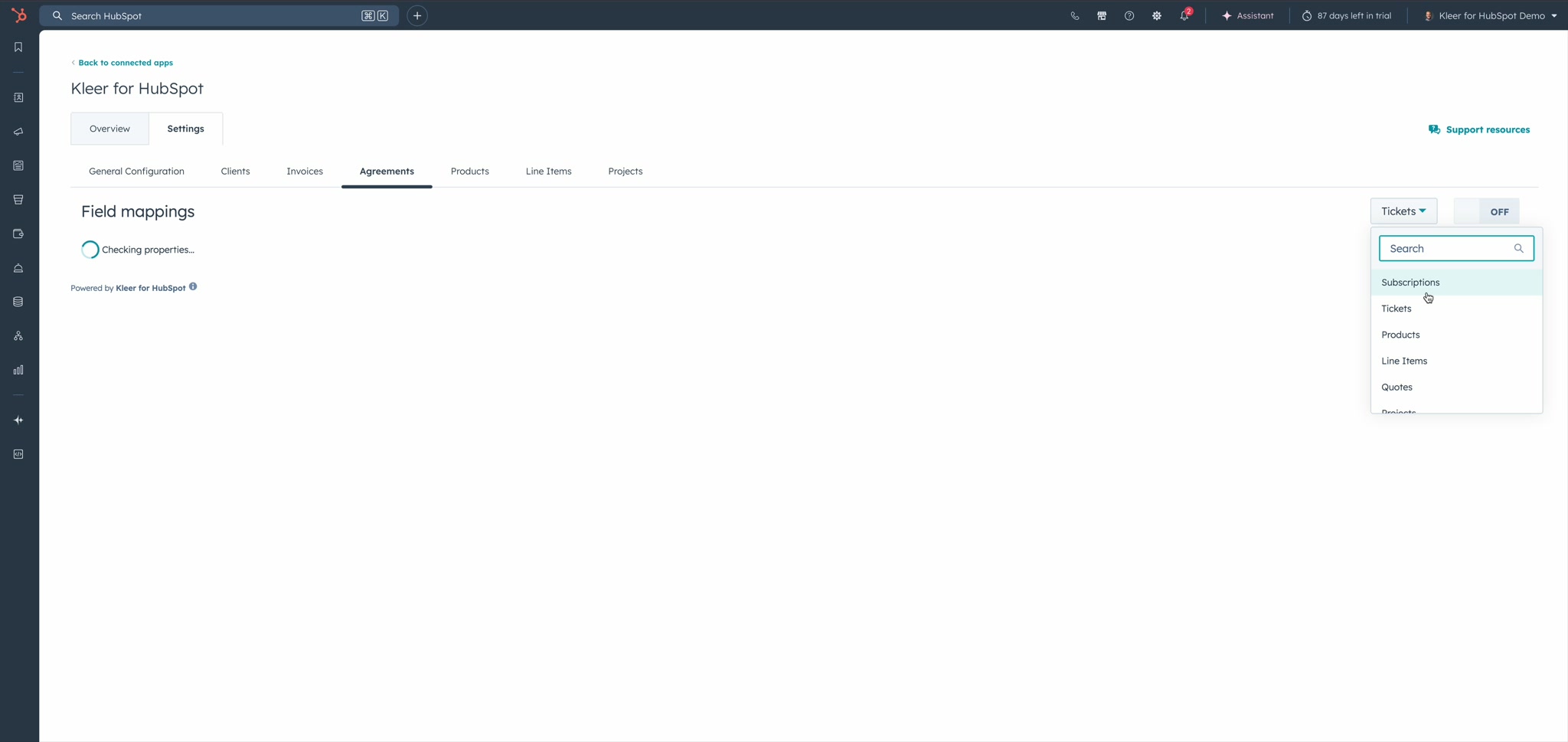
This lets you map Kleer objects to different HubSpot objects if your setup requires it.
Importing Mappings
Click Import now to trigger an immediate sync for that object type after updating your mappings. This is useful when you've just configured new mappings and want to see the results right away.
Computed Fields
Some fields are computed by the integration and don't exist directly in Kleer. These are labeled with "(computed)" in the field picker:
- Total amount — Invoice total converted to the display currency
- Status — Derived status (e.g. active/expired for agreements, draft/open/paid for invoices)
- MRR / ARR — Monthly and annual recurring revenue for agreements
- Billing frequency — The billing interval as a HubSpot-compatible value
Required Mappings
Some object types have required field mappings that must be configured before sync can be enabled. For example, clients require the Name field to be mapped.
Per-Object Reference
For complete field lists, required mappings, and enum values for each object type, see the field mapping reference: